![MS_Master_Horizontal_Reversed (1).png]](https://help.merchantspring.io/hs-fs/hubfs/MerchantSpring%20Logos/MS_Master_Horizontal_Reversed%20(1).png?height=30&name=MS_Master_Horizontal_Reversed%20(1).png)
MerchantSpring requires your Shopify store URL, Client ID, and Client Secret to connect your Shopify store and display data.
Obtaining your store URL
Your store URL is the web address ending with myshopify.com that you use to view and manage your store. If you use a custom store domain, please enter the original web address of the store, not the custom domain.
Obtaining your store Client ID and Client Secret
As of January 1, 2026, Shopify changed the way you can create and manage custom apps. Here's the new process to obtain your Client ID and Client Secret for use with MerchantSpring,
-
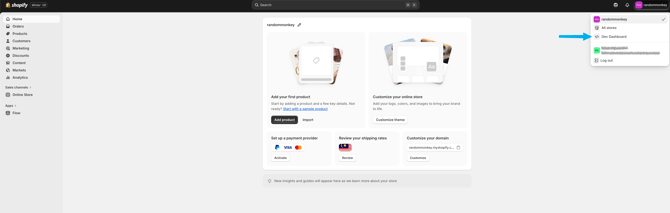
From the Admin panel, go to the Dev Dashboard in the top right corner:
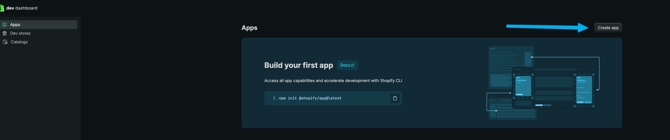
- In the Dev Dashboard, you’ll immediately land on the Apps page. Click "Create app".
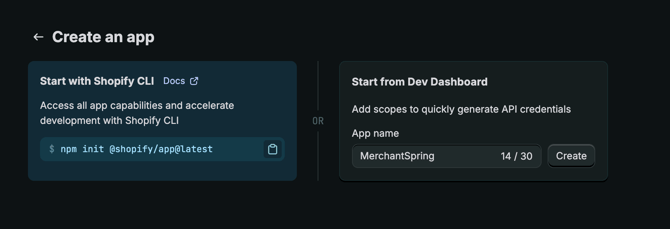
- Fill out the app details
- You’ll land on the Configuration page. Enter each permission needed, separated by a comma. There should be 8 permissions.
read_products,
read_analytics,
read_customers,
read_draft_orders,
read_inventory,
read_orders,
read_product_listings,
read_content
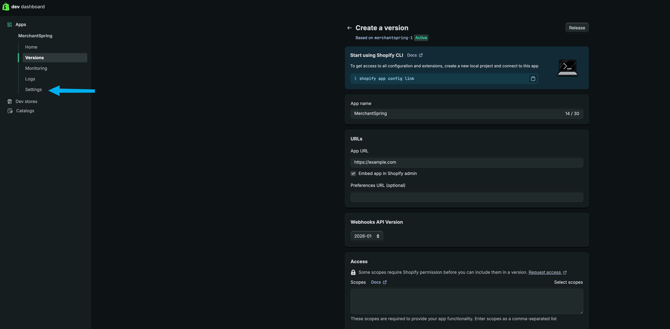
IMPORTANT: If you need to get back to this page, you can go to the Versions tab and create a new version for the app. There's currently no way to edit the permissions for an existing version.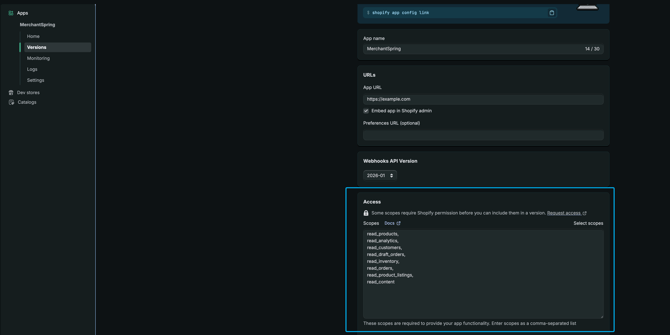
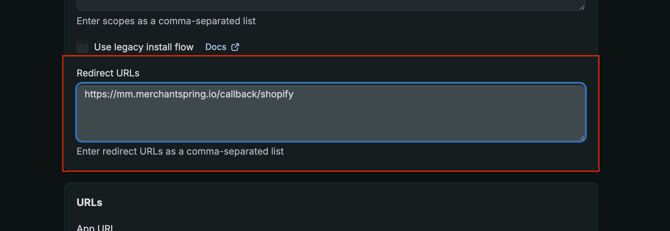
- Enter your callback URL. https://{custom domain}/callback/shopify or https://mm.merchantspring.io/callback/shopify
- Proceed to the Settings page to retrieve your API credentials
-
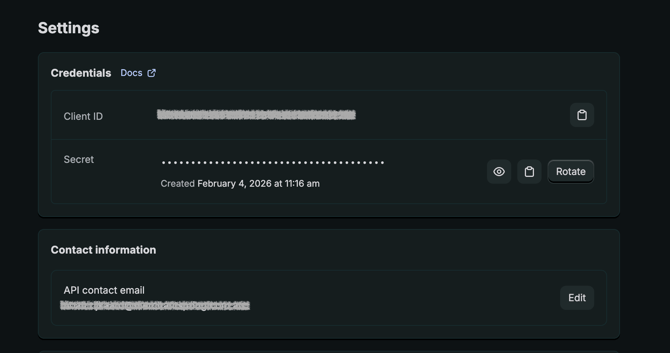
In the Settings page, you’ll see the API credentials you need. Copy your Client ID and Secret.
- Before installing the app, you would need to set up the Distribution method for the application.
a. Go to the Shopify Partners page > All apps page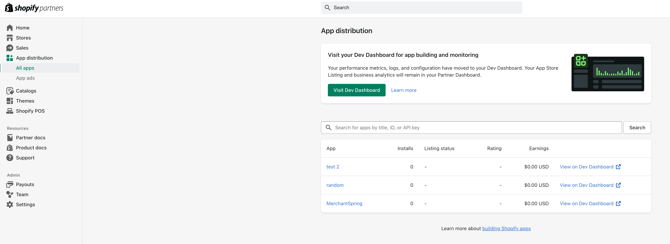
b. Click on the app name (not the view in the Dev dashboard)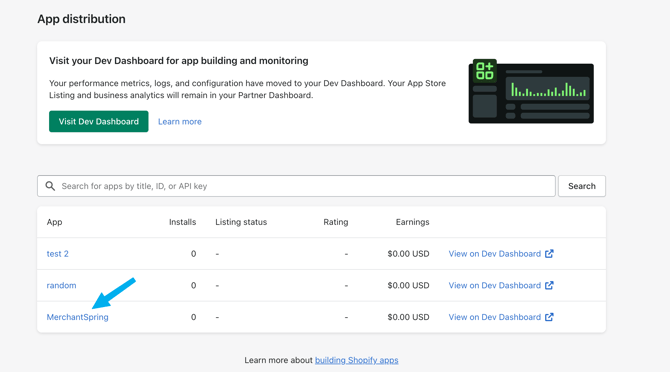
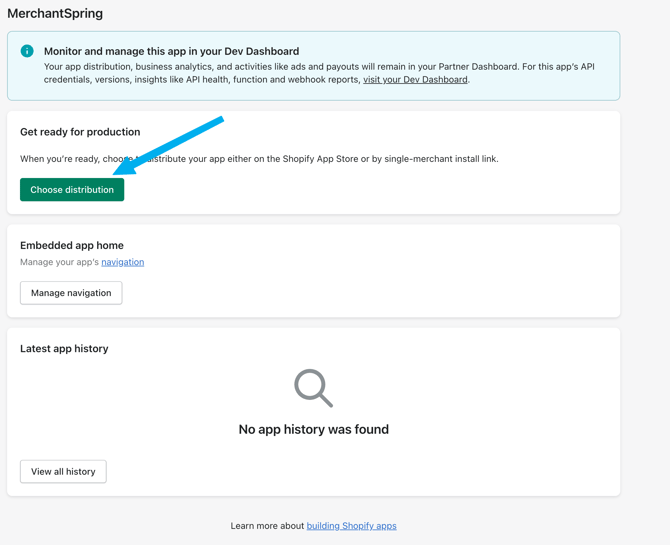
c. Click Choose distribution
d. Choose the Custom distribution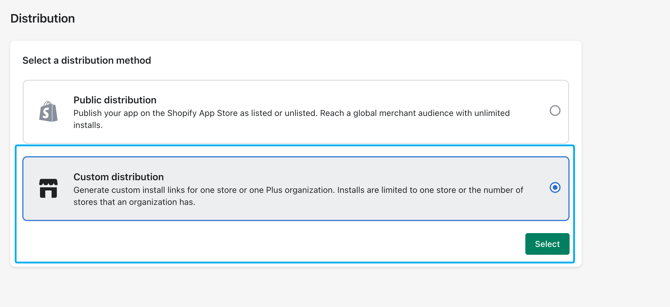
e. Confirm selection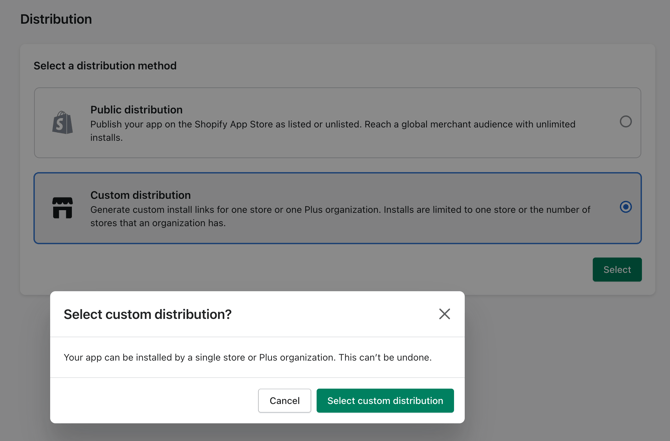
f. When setting the custom distribution, enter your Shopify store URL. (The URL from your admin store page will work as well).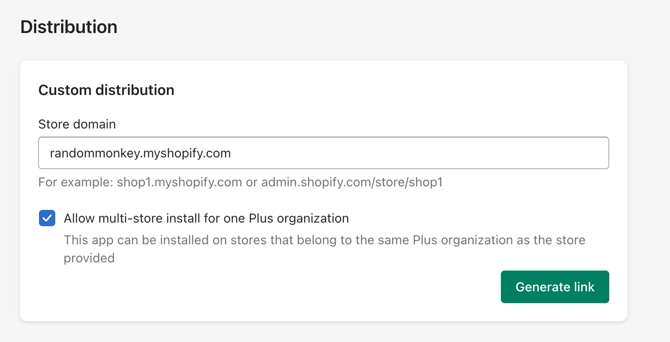
g. Generate the link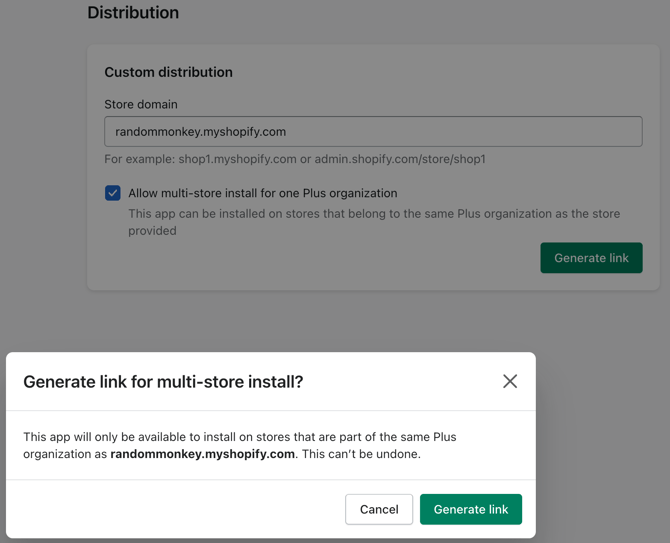
h. Copy the generated link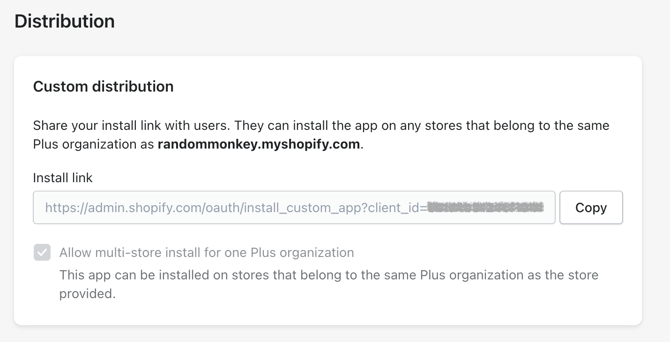
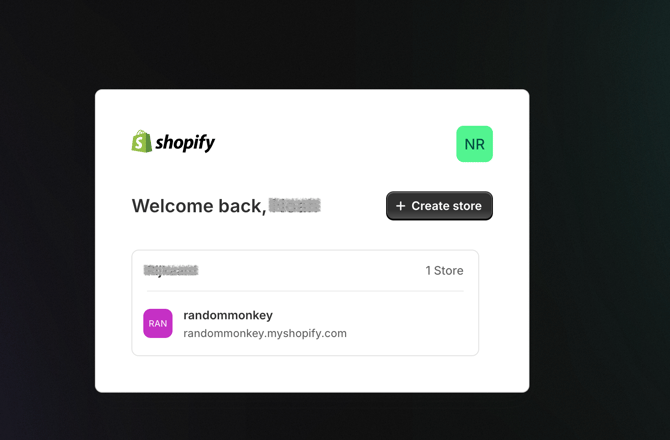
- Go to the generated link. If you've set up the distribution correctly, you will see this page:
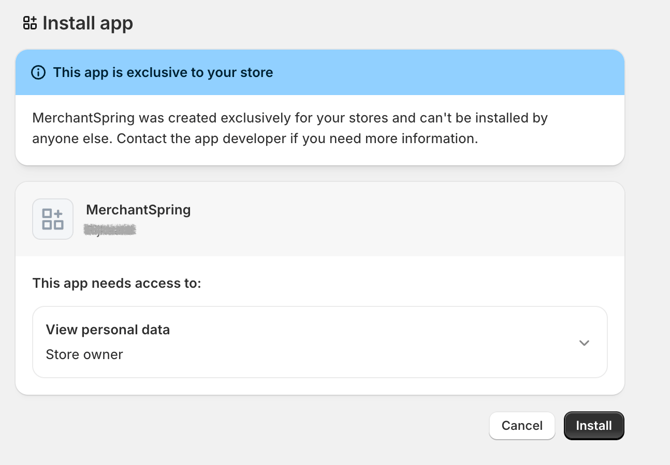
- Copy the generated link into your browser and then use it to install the app into your store
-
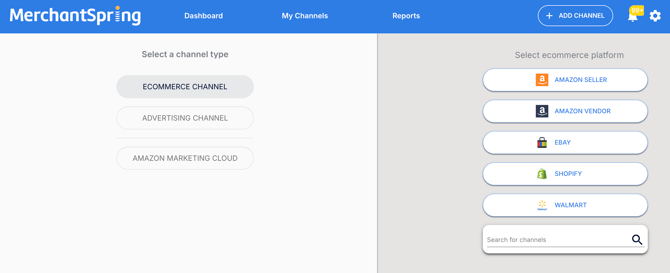
Log in to your MerchantSpring account. Go to "+Add Channel" > ECOMMERCE CHANNEL > then click "Shopify".
-
Type your Shopify store URL, then paste the copied Client ID and Secret into the Shopify connection page in your MerchantSpring account. Type the 3-letter country code. Click the "Connect" button.
The domain needs to be in the internal Shopify format. Typically, this will be something like: https://shopifystorename.myshopify.com
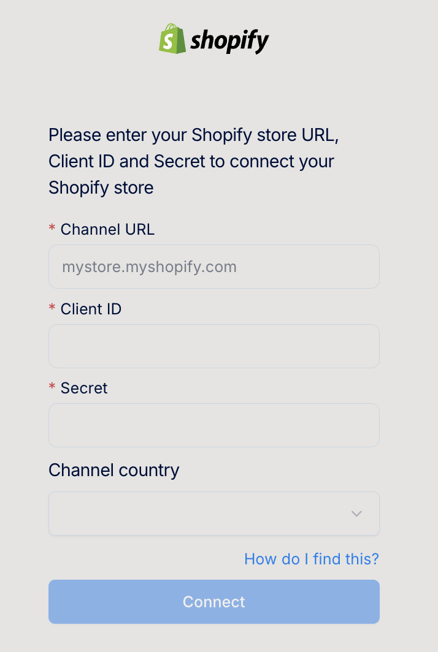
- After this screen, your Shopify channel will be connected to MerchantSpring and start syncing data. Congratulations!
If you have any questions, just let us know. We're always happy to help!