![MS_Master_Horizontal_Reversed (1).png]](https://help.merchantspring.io/hs-fs/hubfs/MerchantSpring%20Logos/MS_Master_Horizontal_Reversed%20(1).png?height=30&name=MS_Master_Horizontal_Reversed%20(1).png)
Method 1 (Recommended): Using Connectors (URL)
This is the easiest and most user-friendly way to connect to the MCP using Claude Desktop.
Prerequisites:
-
Claude Desktop app
-
Free tier account or above
How to set up:
-
Open the Claude Desktop app.
-
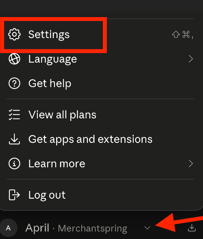
Click your name in the bottom-left corner to open the profile menu, then select Settings.
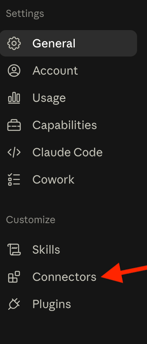
3. In the left-hand menu, select Connectors.
4. Click the Browse button in the top-right of the Connectors panel.

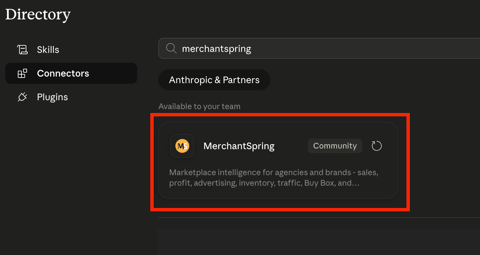
5. Type merchantspring into the search box, then click the MerchantSpring result.
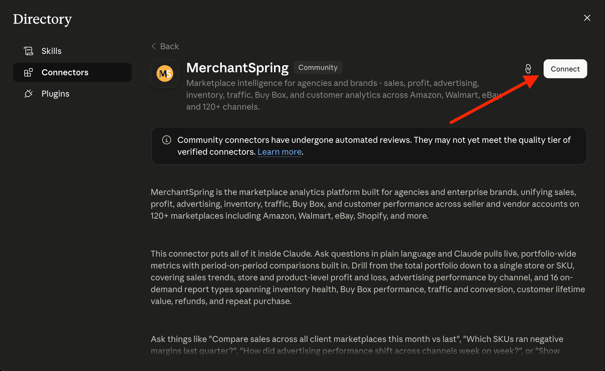
6. Review the connector description, then click Connect in the top-right.
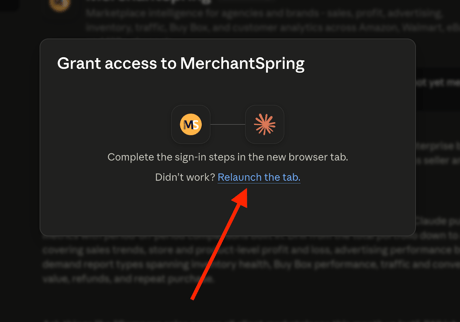
7. A Grant access to MerchantSpring message appears in Claude, and a new browser tab opens for sign-in.
If the new tab doesn't open — for example, if your browser blocked the pop-up — click Relaunch the tab.
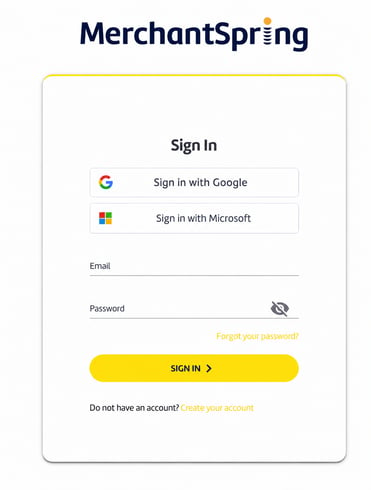
8. Login using your MerchantSpring account credentials and Allow Access.
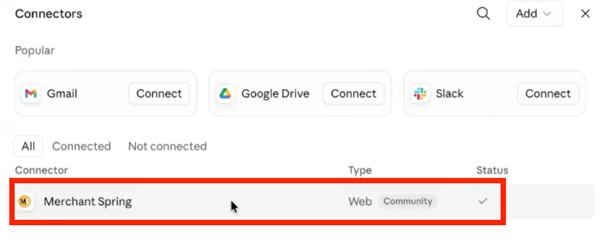
 9. Once you've logged in successfully, it will redirect back to the Claude Desktop, showing the list of available tools.
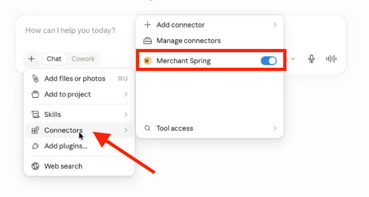
10. You should see the Connector listed as part of the tools in the main chat box.
Method 2: Using OAuth
Step 1: Generate Your API Key
Copy your API keys in your MerchantSpring account by navigating to My Account → Settings → API.
You will need this key for the configuration file.
Step 2: Open Claude’s MCP Configuration
In Claude Desktop, navigate to: Settings → Developer → Edit Config
This opens the configuration file.
File locations
Mac: ~/Library/Application Support/Claude/claude_desktop_config.json
Windows: %APPDATA%\Claude\claude_desktop_config.json
Step 3: Add the MerchantSpring MCP Configuration
Add the following configuration to your file.
If no other MCP servers exist, you can replace the entire file.
"globalShortcut": "",
"mcpServers": {
"merchantspring-remote": {
"command": "npx",
"args": [
"-p", "node@22",
"-p", "mcp-remote@latest",
"--",
"mcp-remote",
"https://mcp.merchantspring.io/mcp",
"--header", "Authorization:${AUTH_HEADER}"
],
"env": {
"AUTH_HEADER": "Bearer <user-api-key-goes-here>"
}
}
}
}
Replace: <user-api-key-goes-here> with your MerchantSpring API key.
⚠ Important
-
Do not include the < > brackets
-
Keep the Bearer prefix
Example: "AUTH_HEADER": "Bearer abc123xyz456"
Step 4: Restart Claude Desktop
After saving the file:
-
Close Claude Desktop
-
Reopen the application
You should now see an MCP indicator in the chat input area.
Click it to view available MCP tools.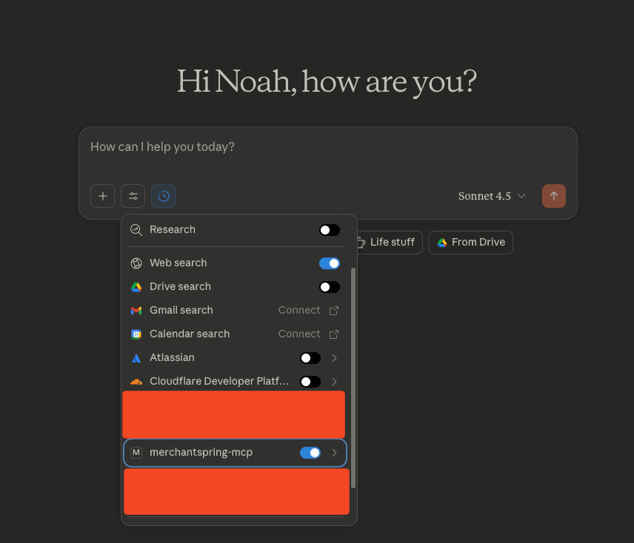
Troubleshooting
If the MCP server does not appear:
1. Restart Claude Desktop
Most issues are resolved by restarting the app.
2. Check the configuration file
Ensure the JSON format is valid.
Incorrect syntax will prevent the MCP server from loading.
3. Check Claude logs
Mac: ~/Library/Logs/Claude
Windows: %APPDATA%\Claude\logs
Look for files beginning with: mcp*.log
Node / NPX Issues (Windows)
If you encounter Node-related errors:
Install npm globally: npm install -g npm
Also confirm this directory exists: %APPDATA%\npm
Security Notice
MCP servers can execute code locally on your machine.
Only install MCP servers from trusted sources and review documentation before enabling them.
Tip:
If you’re unsure which installation method to use, we recommend Method 1 (.mcpb install) for the fastest setup.