![MS_Master_Horizontal_Reversed (1).png]](https://help.merchantspring.io/hs-fs/hubfs/MerchantSpring%20Logos/MS_Master_Horizontal_Reversed%20(1).png?height=30&name=MS_Master_Horizontal_Reversed%20(1).png)
Prerequisites
Before getting started, make sure you have:
- The Cursor desktop application installed.
- A MerchantSpring account that you can use to sign in.
Good to know: This integration also works with Cursor's Free plan.
Step 1: Open the MCP settings in Cursor
- Open the Cursor desktop application.
- Click Customize in the left sidebar.
- Navigate to the MCPs tab.
- Click New MCP Server.
Alternatively, you can access the same settings through Cursor Settings → Customize → MCPs.

Step 2: Add MerchantSpring as an MCP server
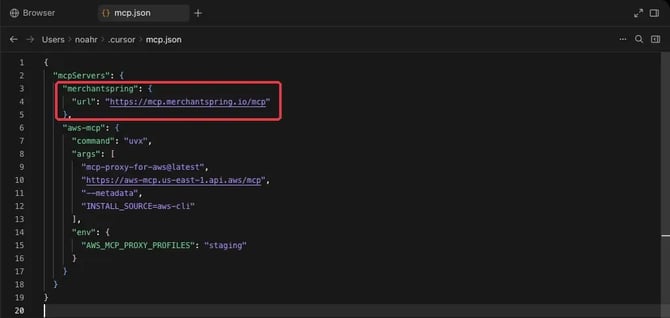
Cursor will open the mcp.json configuration file.
Add the following MerchantSpring configuration under mcpServers:
{ "mcpServers": { "merchantspring": { "url": "https://mcp.merchantspring.io/mcp" } } }If you already have other MCP servers configured, simply add the merchantspring entry alongside them. Do not remove your existing configurations.
Save the file:
- Mac:
Cmd + S - Windows:
Ctrl + S
Step 3: Authenticate your MerchantSpring account
After saving the configuration:
- Return to Customize → MCPs.
- Find
merchantspringunder Needs Attention. - Click Authenticate.

- Your browser will open the MerchantSpring sign-in page.
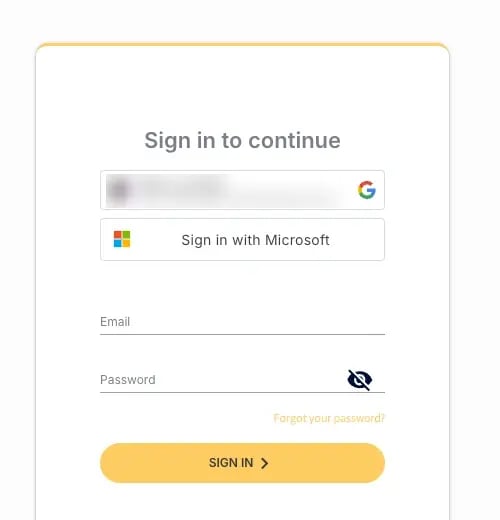
- Sign in using your MerchantSpring account credentials.
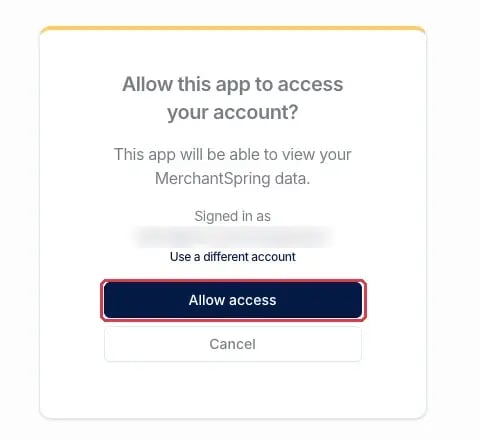
- Review the access request and click Allow access.
- When prompted, click Open Cursor to return to the application.
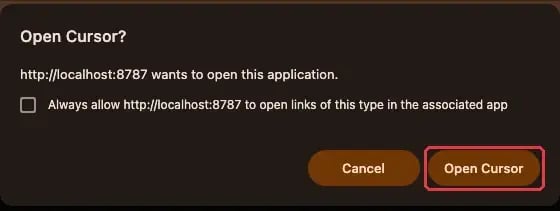
This authorises Cursor to connect securely to your MerchantSpring account.
Step 4: Confirm your connection
Return to Cursor and open Customize → MCPs.
You should now see merchantspring listed under Connected, along with the number of available tools.
Click the MerchantSpring connection to:
- View the available MCP tools.
- Enable or disable individual tools.
- Sign out of your MerchantSpring account.
Your connection is now ready to use!

Step 5: Test your connection
To check that everything is working:
- Start a new chat in Cursor.
- Enter a prompt that requests information from MerchantSpring.
For example:
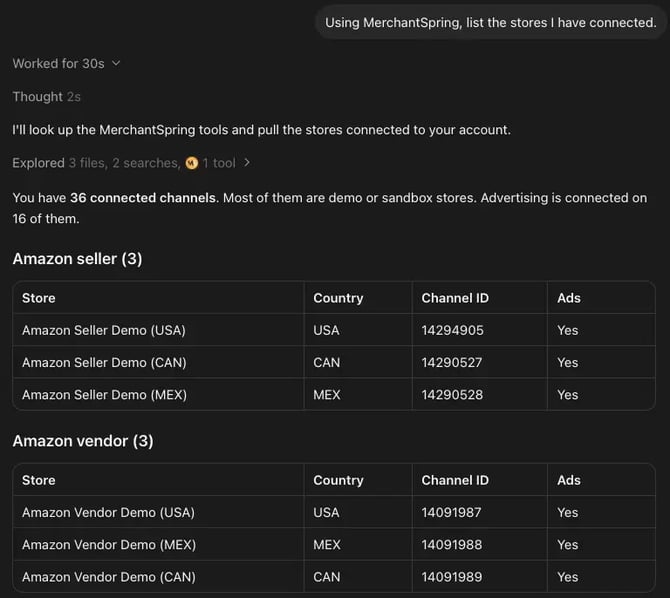
"Using MerchantSpring, list the stores I have connected."
Cursor should use the MerchantSpring MCP tools to retrieve the relevant information and provide a response.
You can now start asking questions about your MerchantSpring data directly in Cursor.
Troubleshooting
If you encounter any issues during setup, try the following:
| Issue | What to do |
|---|---|
| Stuck on "Waiting for callback..." | Return to your browser and click Open Cursor. If needed, click Authenticate again. |
| Signed in with the wrong account | Go to Customize → MCPs, select merchantspring, click Sign out, and authenticate again using the correct account. |
| Request fails due to a timeout | Try submitting your question again. |
If the issue persists, contact the MerchantSpring Support team at support@merchantspring.io for assistance.
Need help?
If you have trouble connecting MerchantSpring to Cursor or accessing your data, please contact our Support team. We'll be happy to help.