How to Connect MerchantSpring to Claude Desktop (MCP Setup Guide)
You can connect the MerchantSpring MCP server to Claude Desktop to access MerchantSpring data and tools directly from Claude. This allows Claude to retrieve information such as - Connected channels and stores, Sales and performance metrics, Traffic and conversion data, Custom reports and analysis.
There are two ways to install the MerchantSpring MCP server.
|
Method |
Recommended For |
Updates |
|---|---|---|
|
Method 1 – Install using MCP file (.mcpb / .dxt) |
Most users |
Requires installing a new file for updates |
|
Method 2 – Configure via MCP config file |
Technical users |
Updates automatically when new features are released |
We recommend Method 1 for most users.
Method 1 (Recommended): Install Using the MCP File
This is the simplest way to connect MerchantSpring to Claude Desktop.
The installation file contains a specific version of the MCP server. When a new version is released, you will need to install the updated file.
Prerequisites
Before starting, make sure you have:
-
Claude Pro subscription (or higher)
-
Claude Desktop installed on macOS or Windows
Download Claude Desktop: https://claude.ai/download
⚠ Important: Claude Desktop must already be open before installing the MCP file.
Step 1: Download the MCP File
Download the latest file: merchantspring-mcp-v1.1.3.mcpb
Released: 29 Dec 2025
Step 2: Install the MCP Server
-
Open Claude Desktop
-
Install the MCP file using one of the following methods:
Option 1: Double-click the .mcpb file
Option 2: Drag the .mcpb file into the Claude Desktop window
You will see an installation prompt.
Click Install and confirm.
Step 3: Enter Your MerchantSpring API Key
After installation, Claude will prompt you for your MerchantSpring API key.
You can generate an API key here: https://developer.merchantspring.io/dashboard
Paste the API key into the prompt.

Step 4: Enable the MCP Server
After entering the API key:
-
Open Claude Settings
-
Find MerchantSpring MCP
-
Toggle the server ON

Step 5: Confirm the Setup
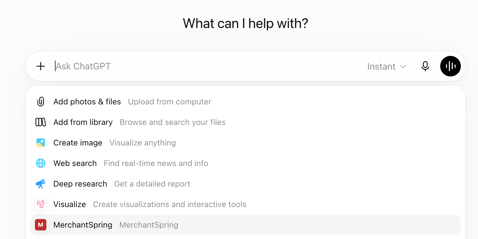
Once enabled, the MCP server will appear in the Claude chat interface.
Claude will automatically use MerchantSpring tools when needed.
You can test the connection with a prompt such as: “How many channels do I have connected?”
Updating the MCP Server (.mcpb Method)
Because this method installs a fixed version of the MCP server, updates require installing a new file.
Before updating, make sure:
• You have downloaded the latest MCP file
• Claude Desktop is open
Steps to update
-
Download the latest MCP file
-
Open Claude Desktop
-
Either:
-
Double-click the file, or
-
Drag it into Claude Desktop
-
Instead of Install, you will see Update.
Click Update and confirm.
After installation, the interface will show Uninstall, confirming the update was successful. You can verify the installed version matches the version number in the file name.
Method 2: Configure MCP via Configuration File (Advanced)
This method requires editing Claude’s MCP configuration file.
The advantage is that the MCP server will automatically update when new features are released, so you won’t need to install new files.
Prerequisites
Before starting, ensure you have:
-
Node.js version 20 or higher (https://formulae.brew.sh/formula/node)
-
NPX installed (included with Node.js)
-
A text editor
-
An MCP-compatible client, such as:
-
Claude Desktop
-
Cursor
-
Other MCP-supported tools
-
Step 1: Generate Your API Key
Create an API key from the MerchantSpring Developer Portal: https://developer.merchantspring.io/dashboard
You will need this key for the configuration file.
Step 2: Open Claude’s MCP Configuration
In Claude Desktop, navigate to: Settings → Developer → Edit Config
This opens the configuration file.
File locations
Mac: ~/Library/Application Support/Claude/claude_desktop_config.json
Windows: %APPDATA%\Claude\claude_desktop_config.json
Step 3: Add the MerchantSpring MCP Configuration
Add the following configuration to your file.
If no other MCP servers exist, you can replace the entire file.
"globalShortcut": "",
"mcpServers": {
"merchantspring-remote": {
"command": "npx",
"args": [
"-p", "node@22",
"-p", "mcp-remote@latest",
"--",
"mcp-remote",
"https://mcp.merchantspring.io/mcp",
"--header", "Authorization:${AUTH_HEADER}"
],
"env": {
"AUTH_HEADER": "Bearer <user-api-key-goes-here>"
}
}
}
}
Replace: <user-api-key-goes-here> with your MerchantSpring API key.
⚠ Important
-
Do not include the < > brackets
-
Keep the Bearer prefix
Example: "AUTH_HEADER": "Bearer abc123xyz456"
Step 4: Restart Claude Desktop
After saving the file:
-
Close Claude Desktop
-
Reopen the application
You should now see an MCP indicator in the chat input area.
Click it to view available MCP tools.
Troubleshooting
If the MCP server does not appear:
1. Restart Claude Desktop
Most issues are resolved by restarting the app.
2. Check the configuration file
Ensure the JSON format is valid.
Incorrect syntax will prevent the MCP server from loading.
3. Check Claude logs
Mac: ~/Library/Logs/Claude
Windows: %APPDATA%\Claude\logs
Look for files beginning with: mcp*.log
Node / NPX Issues (Windows)
If you encounter Node-related errors:
Install npm globally: npm install -g npm
Also confirm this directory exists: %APPDATA%\npm
Security Notice
MCP servers can execute code locally on your machine.
Only install MCP servers from trusted sources and review documentation before enabling them.
Tip:
If you’re unsure which installation method to use, we recommend Method 1 (.mcpb install) for the fastest setup.