![MS_Master_Horizontal_Reversed (1).png]](https://help.merchantspring.io/hs-fs/hubfs/MerchantSpring%20Logos/MS_Master_Horizontal_Reversed%20(1).png?height=30&name=MS_Master_Horizontal_Reversed%20(1).png)
Prerequisites
Before you begin, ensure you have:
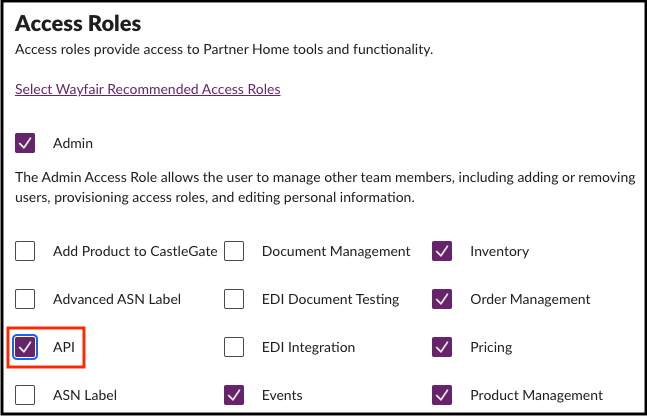
- A Wayfair Partner account with permission to create applications within your Wayfair Developer Portal. The admin user of your account may grant you this access by navigating to the User Management page and editing your user to add the API role:
- An Admin user in MerchantSpring
Step 1. Create a Wayfair Application
- Sign in to the Wayfair Developer Portal.
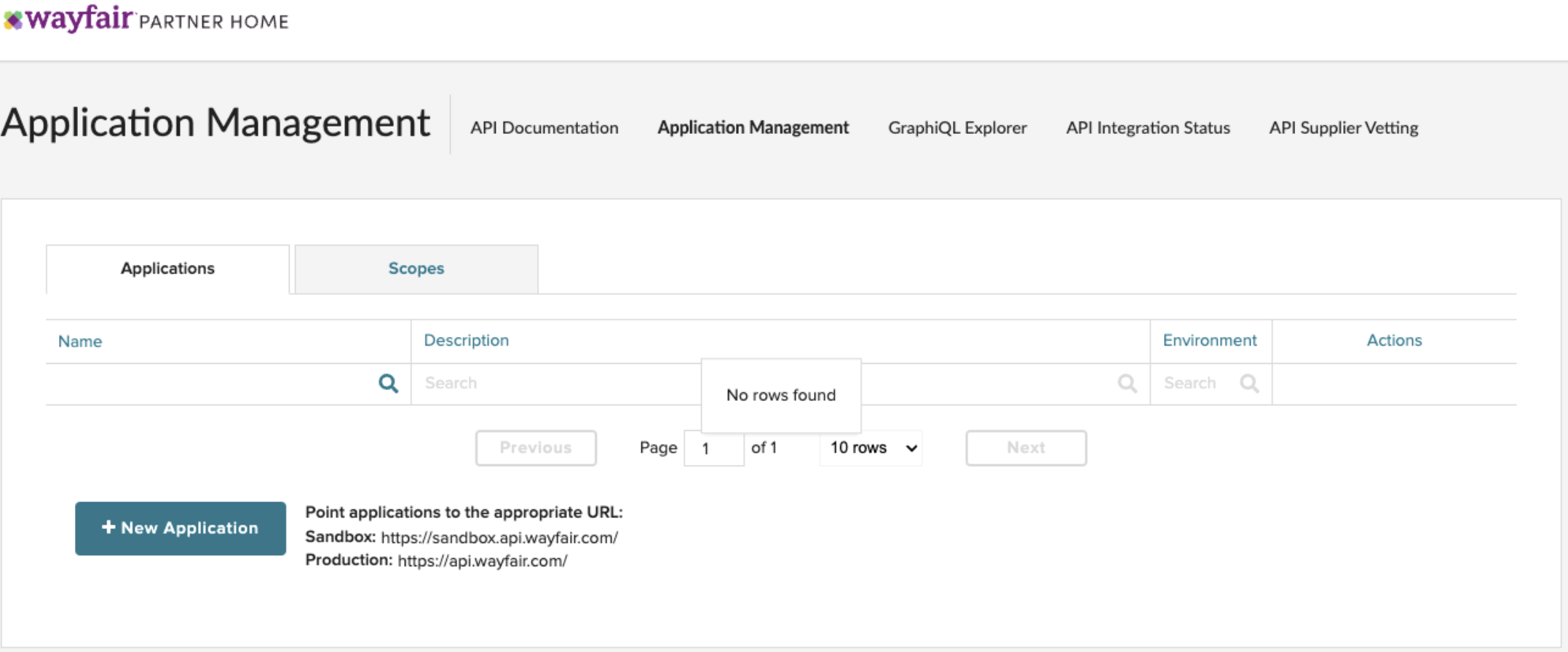
- Navigate to Applications.
- Click Create Application.
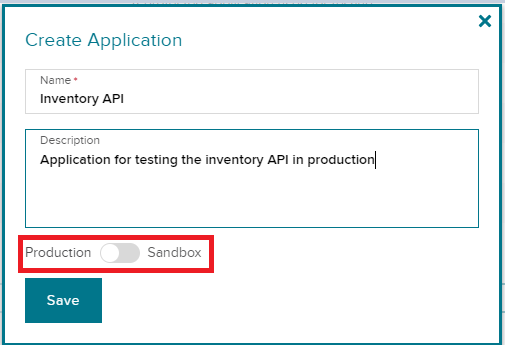
- Enter the following details:
|
Field |
Value |
|---|---|
|
Name |
A descriptive name (e.g. MerchantSpring Integration) |
|
Description |
A brief description of the integration |
|
Environment |
Production |
Important: Select Production, not Sandbox, so MerchantSpring can access your live Wayfair data.
Step 2. Save the Application
Click Save.
Wayfair will create your application and generate the API credentials required for authentication.
Depending on your account permissions, you may need to request approval before production credentials become active.
Step 3. Copy Your API Credentials
Open the newly created application.
Copy the following credentials:
- Client ID
- Client Secret
Keep these credentials secure, as they’ll be used to authorize MerchantSpring’s connection to your Wayfair account. This is the only time you can see the Client ID and Secret, so please copy and store them safely.
If you lose or have lost the Client Secret, you can generate a new one by clicking on the “Edit Application” button and then selecting “Rotate Secret”.
Step 4. Connect Wayfair in MerchantSpring
- Log in to MerchantSpring.
- Go to ADD CHANNEL.
- Select ECOMMERCE CHANNEL
- Click "Search for channels > Type Wayfair
- Enter:
- Country code
- Client ID
- Client Secret
- Store Name
- Click Connect.
MerchantSpring will authenticate with Wayfair and begin importing your available data.
Step 5. Allow the Initial Sync
The initial synchronization may take some time depending on the amount of historical data available in your Wayfair account.
Once complete, your Wayfair reports will begin appearing throughout MerchantSpring.
Troubleshooting
I accidentally created a Sandbox application
Sandbox applications cannot access your live Wayfair account data. Create a new application and select Production instead.
Invalid Client ID or Client Secret
Verify that:
- The credentials were copied exactly as shown in the Wayfair Developer Portal.
- You’re using credentials from the Production application.
- The application has been activated or approved, if required.
Connection unsuccessful
If the connection still fails, contact MerchantSpring Support and provide:
- The application name
- A screenshot of the application settings (excluding the Client Secret)
- Any error message displayed during connection
This information will help us diagnose the issue more quickly.