![MS_Master_Horizontal_Reversed (1).png]](https://help.merchantspring.io/hs-fs/hubfs/MerchantSpring%20Logos/MS_Master_Horizontal_Reversed%20(1).png?height=30&name=MS_Master_Horizontal_Reversed%20(1).png)
Who can see a shared tag?
Sharing a tag makes it visible to users who have access to the channels carrying that tag. It isn't shared with everyone on your account automatically.
If you want a specific person to see a shared tag, the relevant channels need to be connected to their account first. Without that, the tag won't appear for them even once it's shared.
Before you change a tag
Check whether the tag is used in any scheduled reports. Converting a tag affects reports built on it, and you may need to reconfigure them afterwards.
It's worth reviewing your scheduled reports before converting rather than discovering the impact when one next runs.
How to change a tag
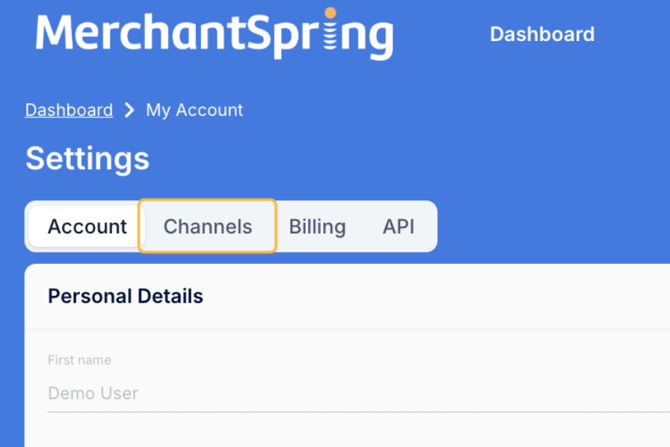
Step 1 — Go to My account > Channels.
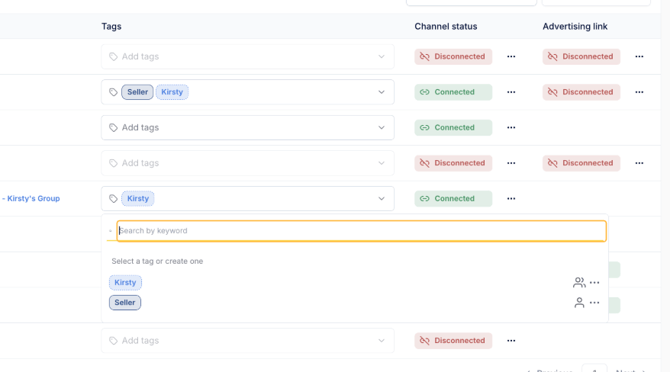
Step 2 — Open the tag list.
Click into the Tags field on any channel row.
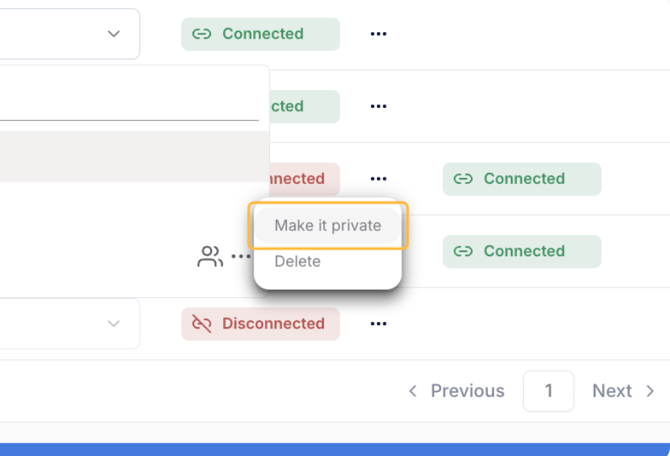
Step 3 — Find the tag you want to change and open the tag options.
Click the three dots next to the icon, then select:
- Make it shared — to share a private tag
- Make it private — to make a shared tag private again
Step 5 — Confirm.
A confirmation box appears. Read it before confirming — it covers the impact on any scheduled reports using this tag.
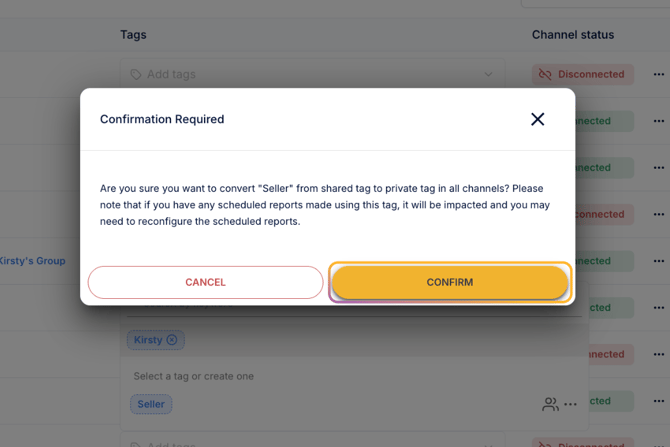
Click Confirm. The tag is now shared with users who have access to the relevant channels.
Setting this when you create a tag
You don't have to convert tags afterwards — you can set a tag as private or shared at the point you create it.
Step 1 — Go to the Channels page and select the channels you would like to add Tags to.
Step 2 — Type the name of your new tag.
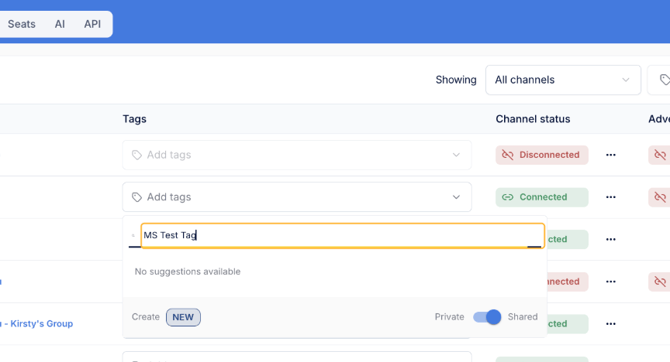
Step 3 — Use the toggle to set the tag to private or shared:
- Private — only you can see and use the tag
- Shared — other users who have access to the same channels can see and use it
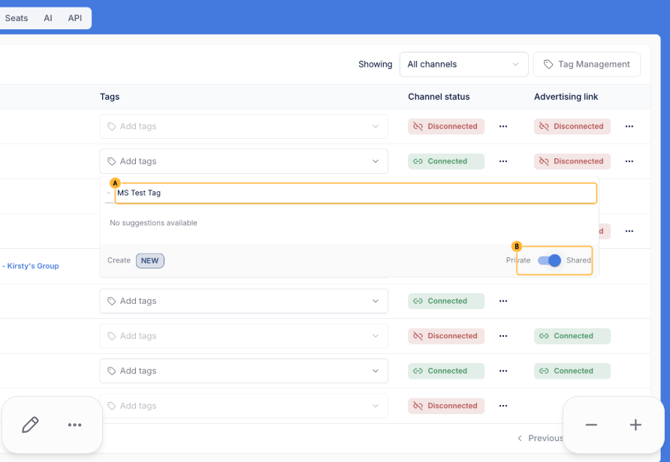
Step 4 — Press Enter to save your changes.
Once saved, other users with the same channels connected to their account can see and use the tag.
Common questions
1. A colleague can't see a tag I've shared. Why?
Shared tags are visible to users who have access to the channels carrying that tag. If your colleague doesn't have those channels connected to their account, the tag won't appear for them. Connect the relevant channels to their account, and the tag will become visible.
2. Can I change a tag back to private?
Yes. Tags can be converted in either direction at any time.
3. Will converting a tag affect my scheduled reports?
Yes. Reports built using the tag are affected by the conversion and may need reconfiguring. The confirmation box flags this before you proceed.
Need help?
If you have any questions about tag visibility, email us at support@merchantspring.com.au, and we'll be happy to help.