![MS_Master_Horizontal_Reversed (1).png]](https://help.merchantspring.io/hs-fs/hubfs/MerchantSpring%20Logos/MS_Master_Horizontal_Reversed%20(1).png?height=30&name=MS_Master_Horizontal_Reversed%20(1).png)
If you've used all of your available seats, you'll need to purchase more before you can invite another user.
Who can do this
You need permission to manage billing and users on your account. You can see your own role on the Seats tab.
Step 1 — Open My Account
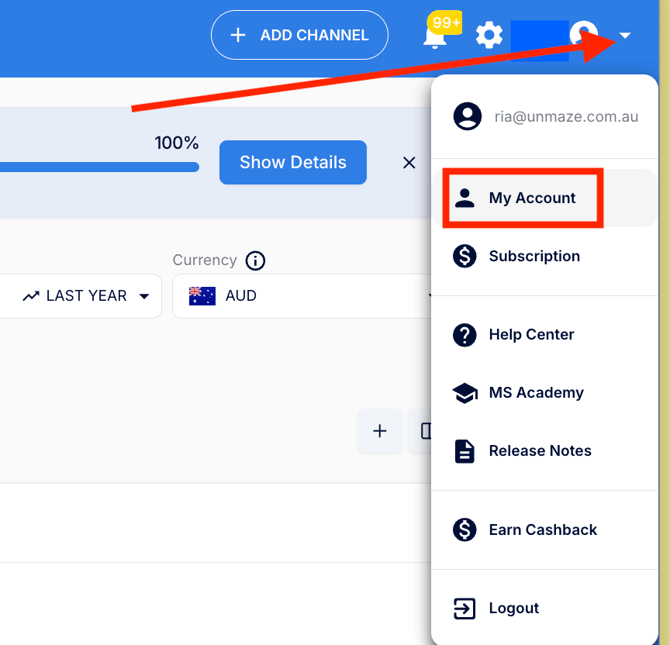
Click the arrow next to your profile icon in the top-right corner, then select My Account.
Step 2 — Go to the Seats tab and click $ Add Seats
On the Settings page, select the Seats tab.
Here you'll see your current seat usage — for example, 7/7 means all seven of your seats are in use.
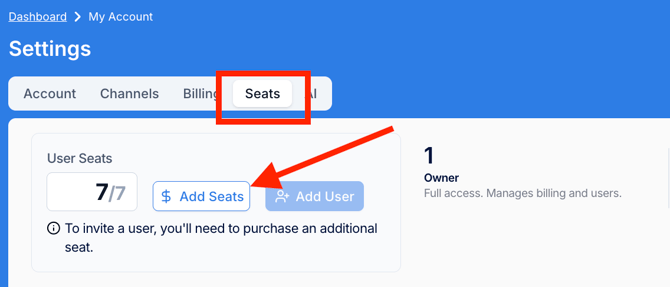
If all your seats are taken, you'll see a note confirming that you'll need to purchase an additional seat before you can invite a user.
Step 3 — Choose how many seats to add and click Continue
The Add Seats Checkout window opens. Choose how many additional seats you'd like: 1, 2, 5 or 10.
The cost is shown next to each option, and a summary at the bottom confirms your total and your per-seat monthly rate.
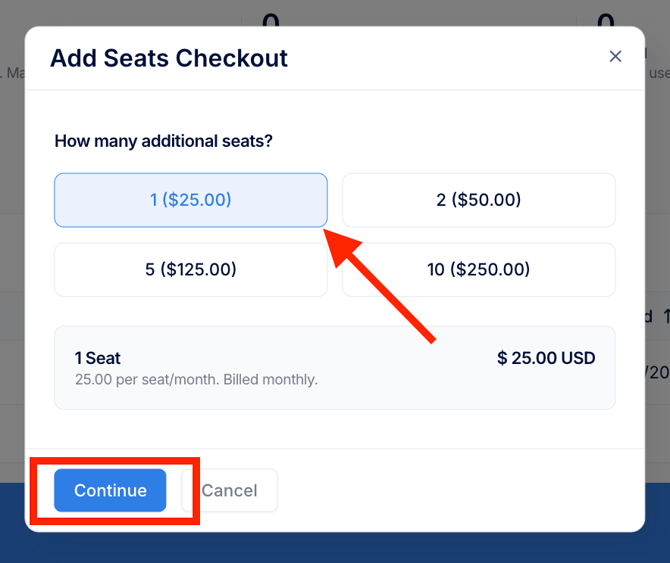
Click Continue, then follow the prompts to complete payment.
Your new seat is available as soon as the purchase completes.
Adding your user
Once you have a free seat, click Add User — it's right next to Add Seats on the same tab. See How do I create a new user/seat in MerchantSpring? for the next steps.
Billing
Seats are charged per seat, per month, and the rate is shown in the checkout window before you confirm.
Need help?
If you run into any issues or have questions, email us at support@merchantspring.com.au, and we'll be happy to help.