![MS_Master_Horizontal_Reversed (1).png]](https://help.merchantspring.io/hs-fs/hubfs/MerchantSpring%20Logos/MS_Master_Horizontal_Reversed%20(1).png?height=30&name=MS_Master_Horizontal_Reversed%20(1).png)
If you’ve forgotten your MerchantSpring password or simply want to reset it, you can do so in just a few steps.
Reset your password
- Go to the MerchantSpring login page.
- Click Forgot your password?
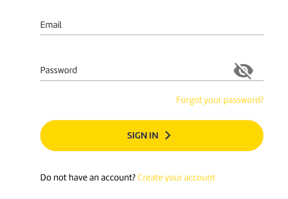
- Enter the email address associated with your MerchantSpring account.
- Open the password reset email (check your Inbox, Promotions, or Spam folder).
- Follow the instructions in the email to create a new password.
Password requirements
Your new password must meet all of the following requirements:
- Between 12 and 32 characters
- Contains at least one number (
0–9) - Contains at least one uppercase letter (
A–Z) - Contains at least one lowercase letter (
a–z) - Contains at least one special character (
! @ # $ % ^ & * ( ) , .) - Must not contain spaces
Need help?
If you don’t receive the password reset email or continue to experience issues, please contact support@merchantspring.io.